
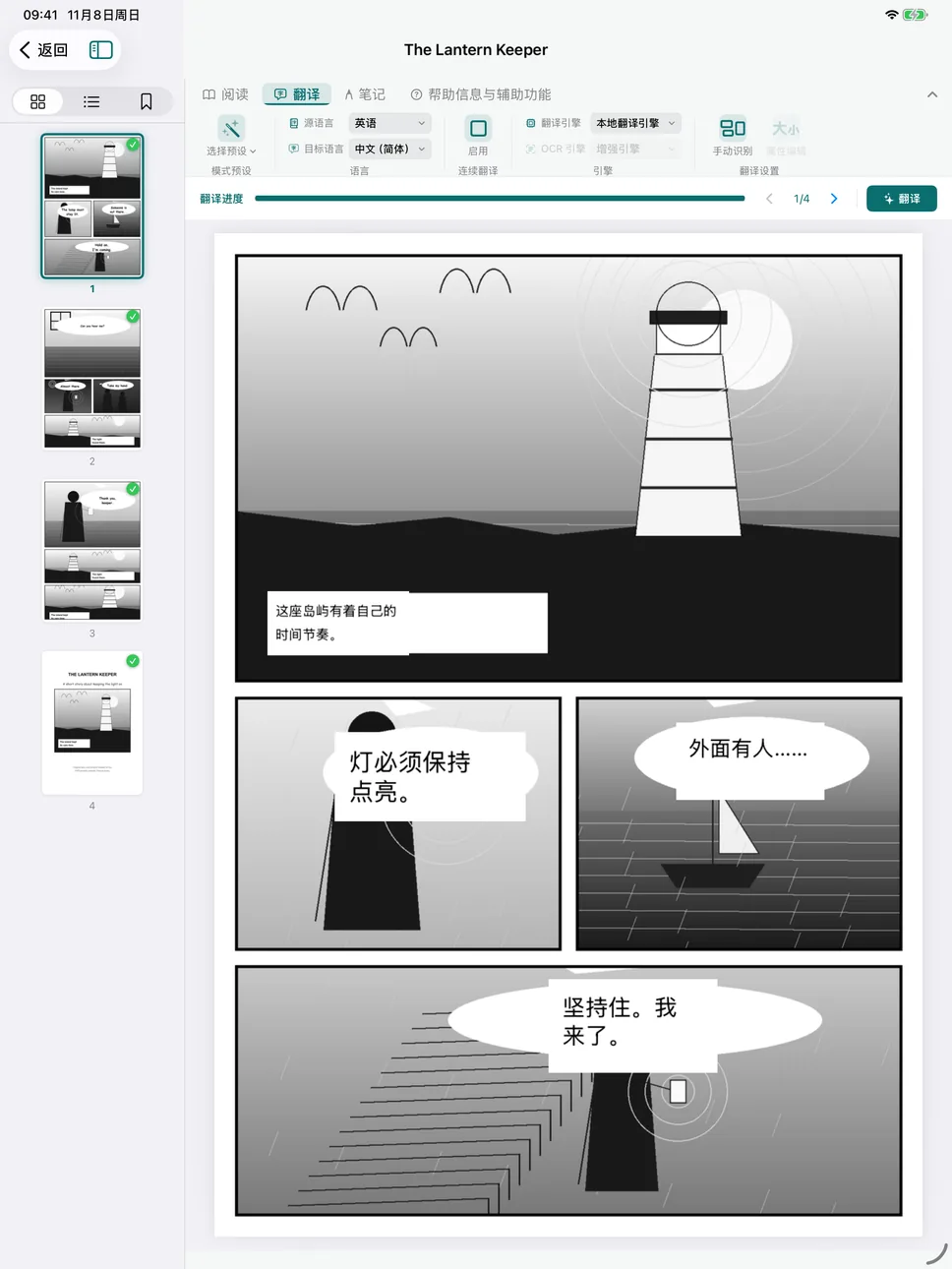
A scanned PDF is really just a set of images. Because there is no real text inside, you can't select, search, or translate it directly. PdfTranslator's built-in OCR engine solves this.
What is OCR?
OCR (Optical Character Recognition) reads the text that appears inside an image and turns it into editable, searchable text. Once the text is recognized, PdfTranslator can translate it and place the translated text back into the original layout.
How to translate a scanned PDF
- Import the scanned PDF as you would any other file.
- Enable OCR if it's not automatic. PdfTranslator detects image-based pages and runs OCR to extract the text.
- Confirm the source language of the scan — this improves OCR accuracy significantly.
- Choose your target language and translate.
Because the OCR output is placed back into the original image layout, your scan keeps its structure: tables, headings, and margins stay where they are.
Tips for better OCR results
- Use clear scans. A crisp, well-lit scan with straight alignment OCRs far more accurately than a blurry photo.
- Set the correct source language. OCR is much more reliable when it knows which alphabet the document uses.
- Handwritten notes are hard. OCR works best on printed text. Handwriting may need manual review.
When OCR isn't needed
Digital PDFs (created from Word, LaTeX, or similar) already contain real text, so OCR is skipped automatically and the text is read directly.
If part of your scan still has garbled text, try re-scanning at a higher resolution, then translate again.