
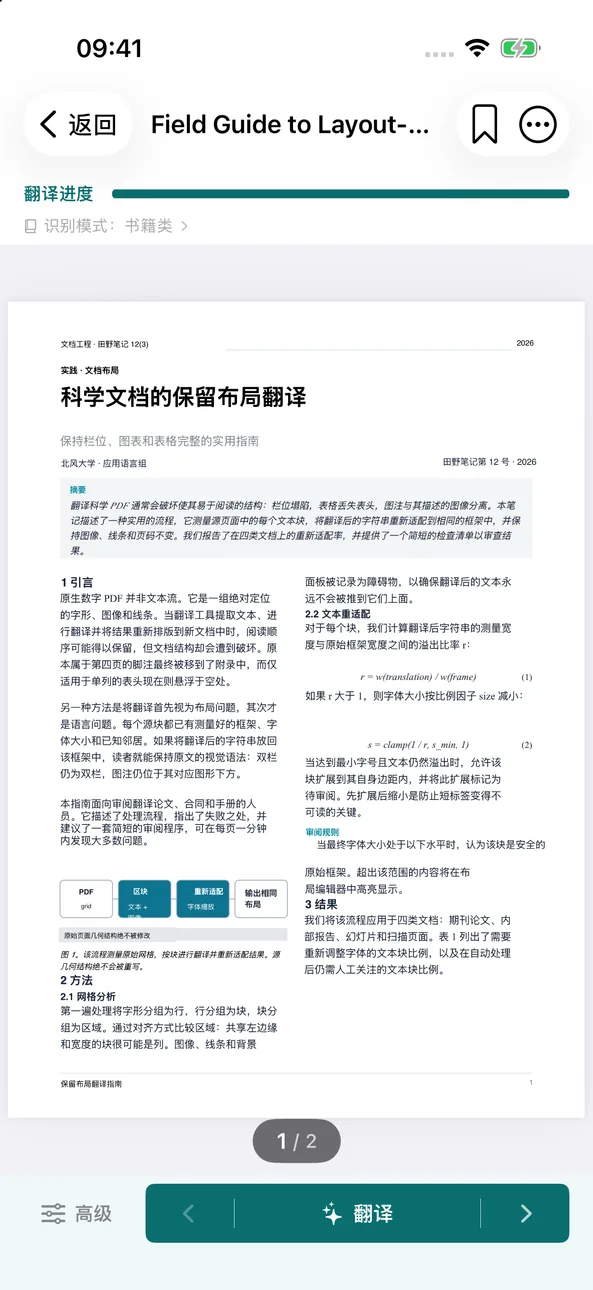
Translating a PDF usually means losing the formatting — tables shift, images move, and footnotes end up in the wrong place. PdfTranslator keeps the original layout intact while replacing the text with a translation. Here is how to do it.
Step 1: Import your PDF
Open PdfTranslator and tap Import PDF from the file manager. The app reads the PDF from your device — no file is ever uploaded. Only minimal extracted text is sent to the translation engine you choose.
Step 2: Let the app analyze the layout
PdfTranslator automatically analyzes the underlying grid structure: columns, images, tables, and text blocks. This analysis is what keeps your document looking identical after translation.
Step 3: Confirm the source and target languages
Set the source language of your document (Auto-detect usually works well) and choose the target language you want it translated into. The app supports 20 languages.
Step 4: Tap Translate
You have two options:
- Translate this page — translate a single page to preview the result.
- Auto-Translate All — translate the entire document in one go, page by page.
Translation is fast because Apple's on-device engine runs entirely on your iPhone. Complex documents can switch to the cloud LLM engine for better quality (see the guide to dual-engine translation).
Step 5: Review with the Original/Translation toggle
After translating, use the Original / Translation toggle to compare the translated text side by side with the original. This is handy when you want to check a specific sentence.
Tip: start with a short document
If this is your first translation, try a 2–3 page document with clear text. You'll see the workflow in action and confirm the result looks the way you expect before translating a 100-page file.